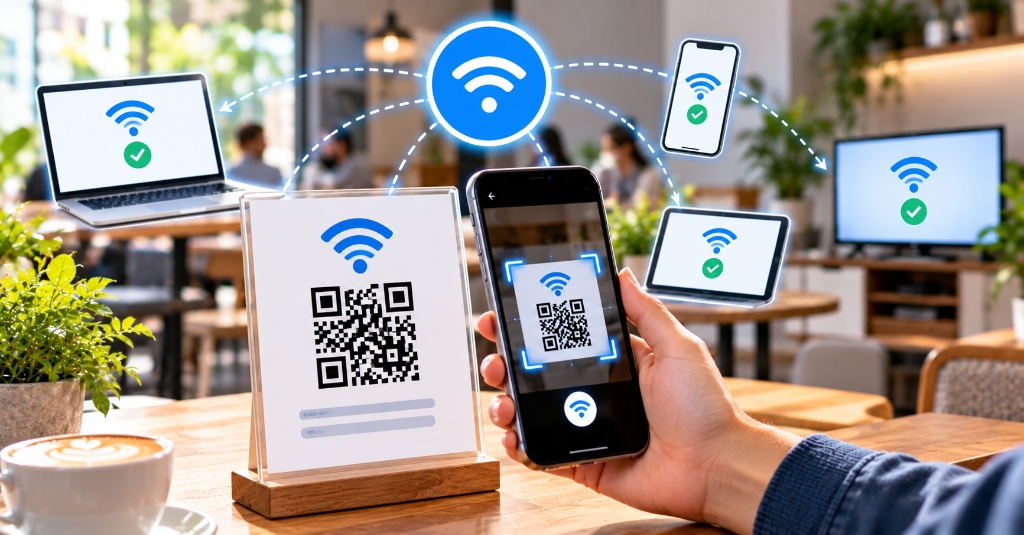
Sharing a guest Wi-Fi password verbally can create mistakes, especially when the password includes similar-looking letters, symbols, or long strings. A Wi-Fi QR code lets compatible phones recognize the network information from a scan. For cafes, clinics, offices, and households, the goal is not to add another complicated software workflow. It is to remove a small but frequent obstacle and help someone complete a task with fewer steps. Understanding the intended result before choosing a tool is the simplest way to avoid wasted effort.
Start with the problem, not the technology
Consider a dental office giving waiting-room visitors access to a separate guest network. The task sounds straightforward, yet small mistakes can make the finished material inconvenient or unusable. A better approach is to decide exactly what the recipient should see or do, prepare that information first, and then generate the supporting link or code. This keeps the technology in service of the message instead of becoming the message.
The most useful question is what happens after the person clicks or scans. Is the destination current? Does it open comfortably on a smartphone? Is the action clear? A polished code or link cannot rescue a broken form, outdated contact information, or confusing page. Test the complete journey from the recipient’s perspective.
A practical workflow anyone can follow
- Collect the correct information and check spelling, formatting, and permissions.
- Open a suitable browser tool and select the Wi-Fi network option.
- Create the output using the smallest amount of information needed for the task.
- Preview the result on another device or browser when practical.
- Save the output with a descriptive filename so it can be found and updated later.
Ready to put this into practice? Make a Wi-Fi QR code with Linkforge. Enter your guest network details carefully and test the code on a second device before displaying it. This makes it easier to move from planning to a usable result without getting stuck in setup steps.
Make the result useful in the real world
Use a dedicated guest network with an appropriate password, then position the QR code where authorized visitors can see it. It is also worth checking physical context: lighting, print quality, the distance from which someone will scan, and whether the call to action explains what they will receive. For online use, preview the output on a phone, not only a desktop monitor.
If guests can join but the connection is weak, an AI WiFi analyzer can help you troubleshoot the network.
Keep a simple record of the source information and the final asset. For a recurring project, use consistent names and a review date. That makes it easier to correct an error, replace a stale destination, or recreate materials when details change. Small operational habits often matter more than fancy visual customization.
Salons, restaurants and other venues can treat guest Wi-Fi as one part of the customer experience, alongside mobile apps built for their industry and online booking and payments.
Common mistakes to avoid
A Wi-Fi QR image contains network credentials. Anyone who can scan or photograph it may obtain access, so do not post a private network code publicly. Another mistake is assuming a successful preview means the entire experience works. Check the destination page, its content, and any forms or buttons. If a code will be printed in volume, make one proof copy first and test it under realistic conditions.
Finally, avoid making the asset unnecessarily complicated. Excessive information, hard-to-read colors, tiny print, or vague instructions can reduce usability. Clear contrast, concise labels, and straightforward destinations generally make the result more approachable. Provide a readable URL or alternate contact method when accessibility or device compatibility could be a concern.
Frequently asked questions
Does a Wi-Fi QR code work on every phone?
Many modern phones recognize the format, but device and operating-system support can vary. Testing the finished output is still essential because real-world conditions and device support vary.
Is a Wi-Fi QR code secure?
It is a convenience method, not an extra security layer; protect the image like the password itself. When in doubt, check the final material with the same device and context your audience will use.
The bottom line
The best wifi qr code generator workflow saves time while making information easier to access. Start with a clear destination, create only what you need, test it carefully, and revisit it when the underlying information changes. Linkforge can help with the preparation step, but thoughtful content and reliable follow-through are what make the result genuinely useful.
Quick quality-control checklist
Before sharing the finished asset, confirm that the source details are correct, the output opens as expected, the instructions make sense to a first-time user, and a backup copy is saved. For cafes, clinics, offices, and households, assign one person to own updates. A short review before launch can prevent confusion for many recipients afterward.
SpeckPro Editorial Team
Online ToolsNotes from the SpeckPro team on building, improving, and scaling digital products.