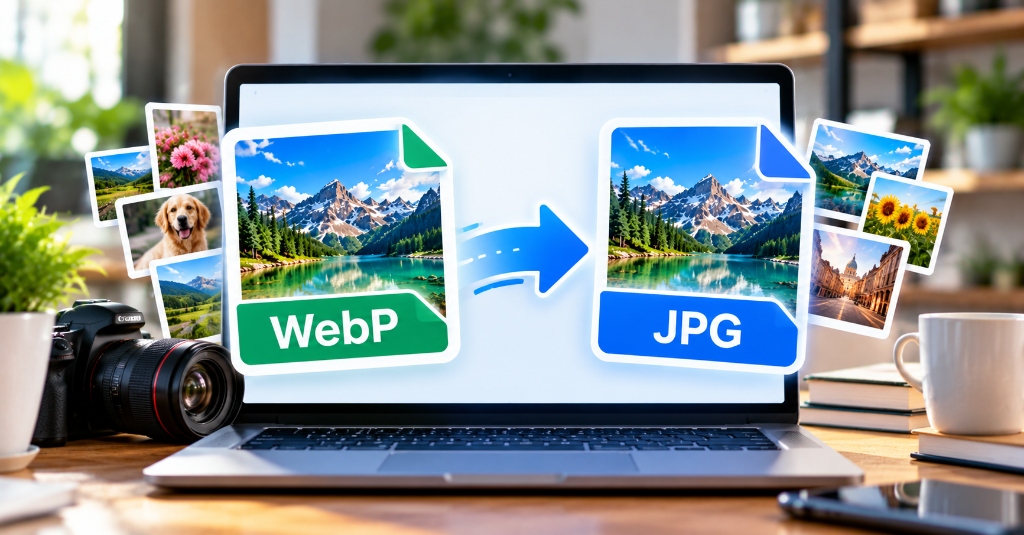
WebP is common on modern websites because it can deliver compact images, but a downloaded WebP file may not fit an older workflow. Some upload forms, legacy applications, or colleagues may specifically request JPEG. Knowing when to convert prevents needless frustration and unnecessary quality loss.
A real-world problem worth solving
Picture a school volunteer collecting photos for a printed event flyer. A useful image arrives as a WebP file, but the layout program used by the volunteer does not import it reliably. Converting a copy to JPG may solve that compatibility problem without changing the source.
A practical step-by-step approach
First verify that conversion is necessary. Many current browsers and design applications support WebP. If the receiving system accepts the original, keeping it avoids an extra step. If JPEG is required, export a copy and check the result before deleting anything.
Image format also matters when you update a small business website or add product photos to an online store.
Understand the technical trade-offs
JPEG does not support transparency. Transparent areas in a WebP image may become a solid background during conversion, depending on the tool. For logos or diagrams with transparent edges, PNG may be a better destination format if the platform accepts it.
How a free online tool fits into the workflow
Use an image converter such as Pixly to create the required format, then open the output in the application that will use it. Confirm orientation, color appearance, dimensions, and readable text. For sensitive photographs, review the service’s privacy policy before uploading.
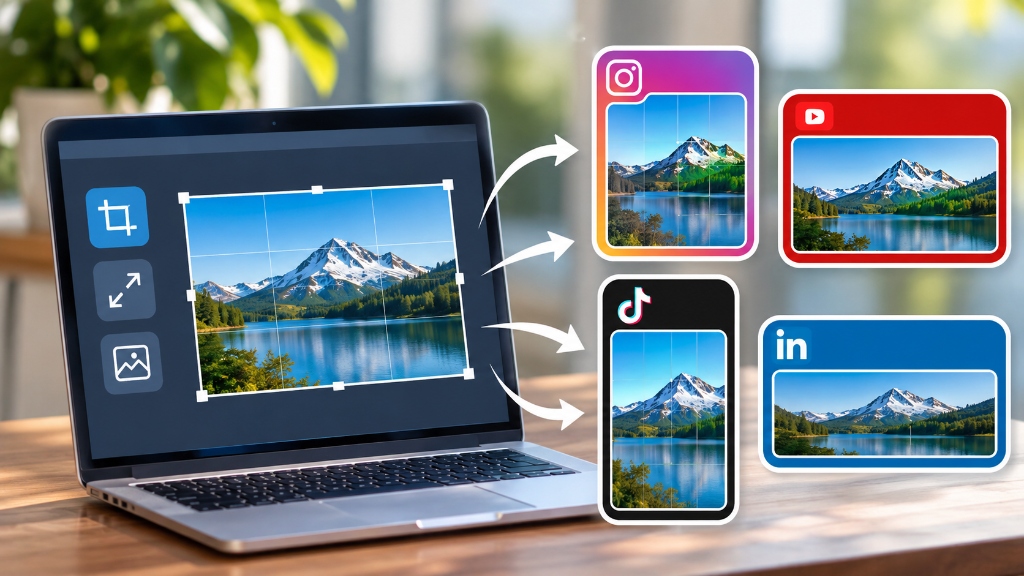
If the converted image is headed for social media, check our guide to resizing images for Instagram, YouTube, TikTok and LinkedIn.
Quality checks after conversion
Pay special attention to photos with text overlays, gradients, or transparent elements. Conversion can change the way edges and backgrounds look, especially if the destination format does not support the same features. Zoom in to inspect important details, then step back and judge the image at normal viewing size.
One more check before publishing
If a file is intended for print, confirm the printer’s specifications for pixel dimensions and color handling. Web-oriented conversion is not a substitute for a proper print production workflow. Ask the recipient to verify the exported file before distributing hundreds of copies.
The takeaway
A successful conversion is about compatibility, not magically increasing quality. Changing a blurry source into JPG will not restore missing detail. Keep the original WebP file so you can revisit the export settings later.
For everyday image preparation, try Pixly — Free Online Image Tools. Check the available functions and output settings against your particular project requirements.
Frequently asked questions
Does compression always reduce visible quality?
No. Some methods are lossless, and moderate lossy compression may look nearly identical at normal display size. Always inspect the result.
Should I delete the original image?
No. Keep an untouched source so you can make new versions later.
Can an image tool guarantee better Google rankings?
No. Image optimization can improve the experience, but rankings depend on many factors.
A reliable routine is simple: confirm the destination requirements, preserve the original, edit a copy, compare the result, and test the file where it will actually appear. This approach helps avoid repeated uploads, unexpected cropping, unreadable text, and last-minute format problems. It also keeps attention on the people who will view or use the image, rather than treating the smallest possible file as the only goal.
SpeckPro Editorial Team
Online ToolsNotes from the SpeckPro team on building, improving, and scaling digital products.