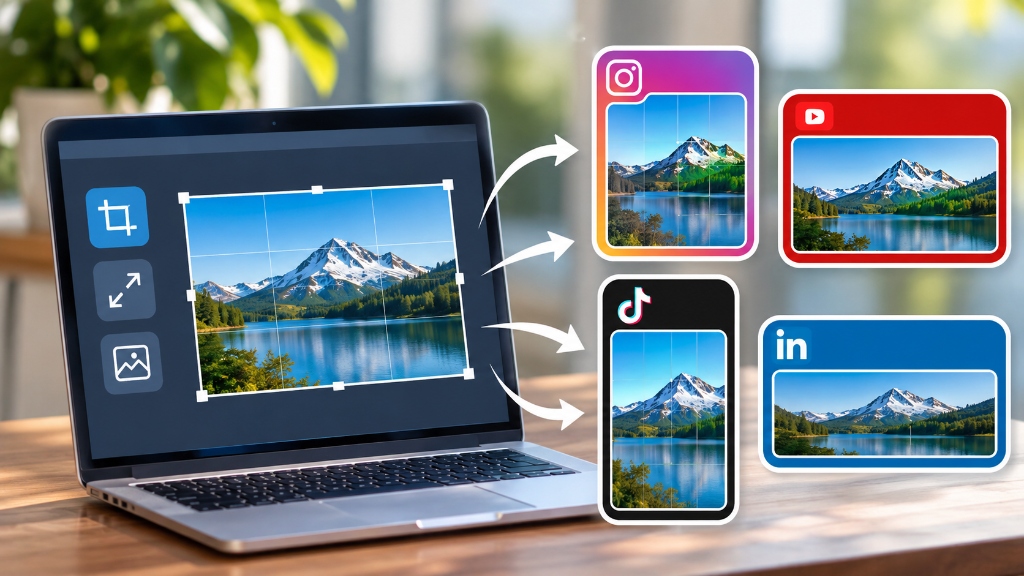
Every social platform crops images differently, and uploading the wrong size can cut off faces, blur text or leave awkward borders. The quickest fix is to crop and resize your photo to the exact size each platform expects before you post. The Entertainment Couch image cropper does this in one step for free, with presets for all the major networks.
Quick answer: The most common sizes are 1080x1080 for an Instagram square post, 1080x1350 for an Instagram portrait post, 1080x1920 for Stories, Reels and TikTok covers, 1280x720 for YouTube thumbnails, 1200x630 for Facebook and link previews, and 1200x627 for LinkedIn posts. Open the free image cropper, choose the platform from the Social media size menu, and the editor crops and resizes your image to the exact pixel size.
What size should images be for each social platform?
These are the recommended upload sizes used by the editor's presets.
- Square post: 1080 x 1080 px (1:1)
- Portrait post: 1080 x 1350 px (4:5)
- Portrait for the 3:4 grid: 1080 x 1440 px
- Story or Reel cover: 1080 x 1920 px (9:16)
- Landscape post: 1080 x 566 px
- Post or link image: 1200 x 630 px
- Cover photo: 851 x 315 px
- Story: 1080 x 1920 px
YouTube
- Thumbnail: 1280 x 720 px (16:9)
- Channel banner: 2560 x 1440 px
- Post image: 1200 x 627 px
- Profile banner: 1584 x 396 px (4:1)
- Company cover: 1128 x 191 px
X, Pinterest and TikTok
- X post image: 1600 x 900 px (16:9)
- X header: 1500 x 500 px (3:1)
- Pinterest pin: 1000 x 1500 px (2:3)
- TikTok video cover: 1080 x 1920 px (9:16)
- Profile picture: 400 x 400 px
Platforms update their recommendations from time to time, so check their help pages for very specific placements. The editor keeps an up-to-date list in its social media sizes guide.
How do you resize a photo for social media in one step?
- Open the Crop & rotate tool and load your photo.
- Open the Social media size menu and pick a format, such as Instagram portrait post or YouTube thumbnail.
- Drag the crop frame to keep the part of the photo that matters most.
- Apply the crop. The image is cropped to the right shape and resized to the exact pixel size.
- Export as JPG or WebP for photos, or PNG for graphics with text.
If you also need to adjust colors or add text, try this free online image editor.
What is the difference between cropping and resizing?
Cropping changes the shape of an image by cutting away the edges, for example turning a landscape photo into a square. Resizing changes the number of pixels without changing the shape. Social presets do both at once, which is why they are the safest way to prepare images for a specific platform. If you only need a smaller file, use the image resizer with the aspect ratio locked.
How do you keep images sharp after resizing?
- Start with the largest original you have, because enlarging cannot create real detail.
- Shrink rather than enlarge where possible. The editor uses Lanczos-3 resampling, which keeps edges crisp.
- Add text after cropping so it stays inside the visible area.
- Export photos at 85–92% quality, which looks like the original at a much smaller file size.
If your image supports a news item or a claim, check it with a free fact checker before you post.
Can you resize many images for social media at once?
Yes. The batch image resizer handles up to 200 images in one go, with options to fit within a maximum width and height, convert formats and compress. It is ideal for product catalogues or event photos.
Key takeaways
- Each platform has its own preferred size and aspect ratio.
- Social media presets crop and resize in a single step.
- Shrinking images keeps them sharp; enlarging cannot add detail.
- Everything runs free in your browser, with no sign-up and no watermark.
Resized images often end up on your own site too, where a professional small business website or an online store needs clear, well-sized visuals.
Frequently asked questions
What is the best size for an Instagram post in 2026?
1080 x 1350 px (4:5) takes up the most space in the feed, while 1080 x 1080 px is the classic square.
What size is a YouTube thumbnail?
1280 x 720 px, which is a 16:9 ratio.
Will resizing reduce my photo quality?
Not when you shrink an image. Quality only drops noticeably if you enlarge a small photo or export at very low quality.
Get every post the right shape with the free social media image resizer from Entertainment Couch.
SpeckPro Editorial Team
Online ToolsNotes from the SpeckPro team on building, improving, and scaling digital products.