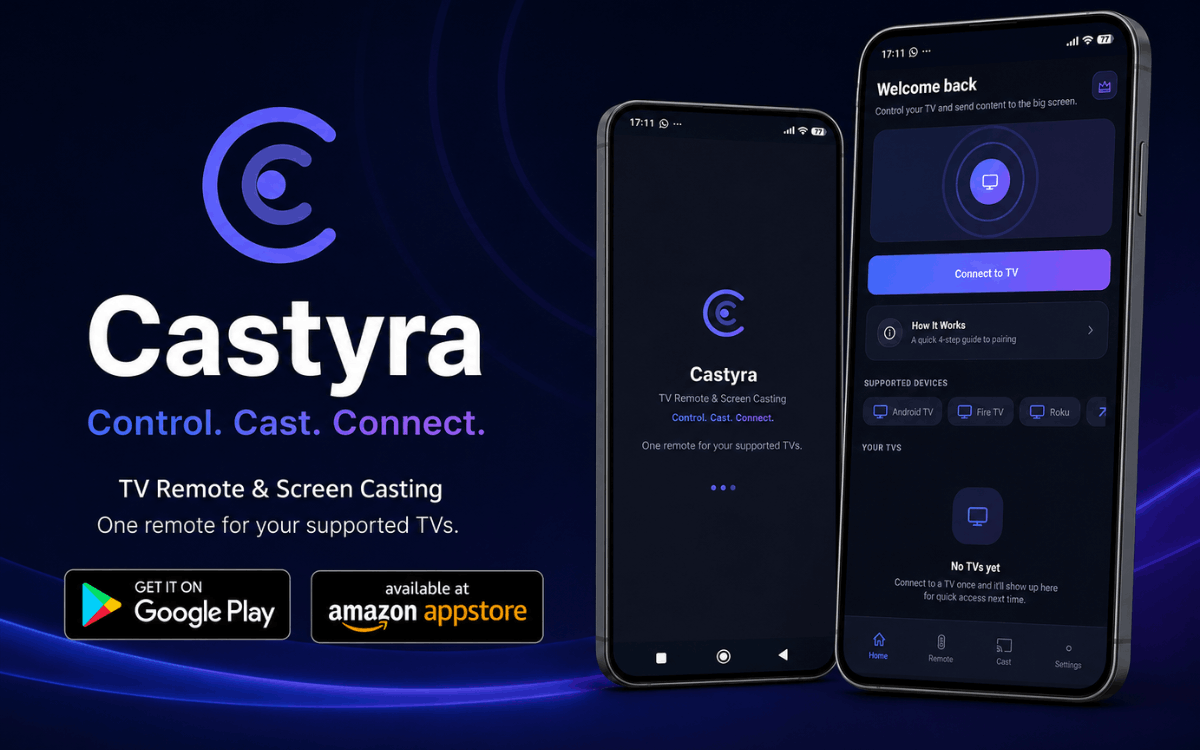
In today's connected homes, the traditional TV remote can quickly become inconvenient.
It gets misplaced, runs out of batteries, or simply doesn't provide the flexibility people expect from modern smart TVs.
Castyra – TV Remote & Cast offers a convenient alternative by turning your Android smartphone into a versatile TV remote and casting companion.
Designed for compatible Fire TV, Android TV, and Roku devices, Castyra lets you control your TV over Wi-Fi, navigate menus with gestures, mirror your Android screen, and cast personal photos, videos, and music to the big screen.
Whether you're looking for a smart TV remote app, universal TV remote for Android, screen mirroring app, or TV casting app, Castyra brings these capabilities together in one application.
Download Castyra – TV Remote & Cast
Castyra is available through two major app stores.
Google Play: Download Castyra on Google Play
Amazon Appstore: Download Castyra on Amazon Appstore
What Is Castyra – TV Remote & Cast?
Castyra – TV Remote & Cast is an Android application that allows your smartphone to communicate with compatible TVs and streaming devices through your local Wi-Fi network.
Instead of relying entirely on a physical remote, users can use their Android phone to perform everyday TV functions such as navigation, volume adjustment, channel switching, playback control, and more.
Beyond remote control functionality, Castyra also provides features for screen mirroring and personal media casting when used with the supported Castyra Receiver application.
The result is an all-in-one solution for people who want to control, cast, and connect their phone to their TV.
Interested in building a similar app? See our mobile app development services.
Turn Your Android Phone Into a TV Remote
One of Castyra's main features is its ability to transform your Android smartphone into a convenient smart TV remote.
After connecting your phone and compatible TV to the same Wi-Fi network, you can use the virtual remote to access essential controls without reaching for a traditional remote.
Remote controls include:
- Power control
- Directional navigation
- OK/Select
- Back
- Home
- Menu
- Play and pause
- Previous and next
- Volume up and down
- Mute
- Channel up and down
- Voice input where supported
The interface puts commonly used controls directly on your phone, making it easier to navigate your TV from the comfort of your couch.
Gesture-Based Smart TV Remote
Castyra goes beyond traditional buttons with a gesture-based touchpad.
Instead of repeatedly pressing directional buttons, users can interact with the TV using familiar touch gestures. Swipe across the touchpad to navigate, tap to select an option, scroll vertically, double-tap, or press and hold when additional interaction is required.
This makes navigating menus and interfaces feel more natural for smartphone users.
The larger touchpad area can also be useful when you need to navigate through long lists or menus without constantly looking down at individual remote buttons.
Easily Find and Connect Compatible TVs
Getting connected is an important part of any Wi-Fi TV remote app. Castyra is designed to make the discovery and pairing process straightforward.
The app can search for compatible devices available on your local network, helping you identify TVs that are ready to connect.
Depending on the supported device, Castyra provides several connection options.
Connection features include:
Automatic Device Discovery
Search for compatible TVs connected to your local Wi-Fi network.
IP Address Connection
Connect directly using the TV's IP address when appropriate.
PIN-Based Pairing
Use the pairing PIN displayed on the TV to establish a connection.
Saved Devices
Previously connected TVs can be saved for easier access later.
Device Status
Check whether connected devices are online, offline, or unavailable.
Multiple TVs
Switch between supported connected TVs when using more than one compatible device.
This makes Castyra particularly useful for households with multiple TVs.
Screen Mirroring From Android to Your TV
Sometimes controlling the TV isn't enough—you want to see what's on your phone on the larger screen.
Castyra supports screen mirroring to compatible Fire TV and Android TV devices through the Castyra Receiver companion app.
Screen mirroring can be useful for sharing content, displaying information, viewing supported apps on a larger display, or showing your phone's screen to other people in the room.
Castyra provides several options to help customize the mirroring experience, including:
- Display format
- Aspect ratio
- Capture quality
- Screen resolution
- Frame rate
The available options can vary depending on the device and configuration.
Cast Photos, Videos, and Music to the Big Screen
Your smartphone often contains some of your most personal and memorable content.
With Castyra's supported media-casting functionality, you can enjoy compatible photos, videos, and music on a larger screen.
Select supported media stored on your Android device and cast it to a compatible TV running Castyra Receiver.
Instead of passing your phone around to show friends and family a photo or video, you can display it directly on the television.
Media playback controls include:
- Play
- Pause
- Rewind
- Fast-forward
- Skip
- Reconnect
- Stop casting
This can make Castyra useful for everything from sharing vacation photos to watching personal videos with family.
Castyra Receiver: The Companion TV App
For supported screen-mirroring and media-casting functionality, Castyra Receiver is used on compatible Fire TV or Android TV devices.
The receiver acts as the TV-side companion that enables the supported casting and mirroring features.
Depending on the setup, you can pair your Android phone with the receiver using:
- QR code
- Six-digit pairing code
- Receiver IP address
Once paired, your phone and TV can communicate over the local network for supported features.
Why Use Castyra as a Smart TV Remote?
There are several reasons users may prefer a smartphone-based TV remote.
1. Your Phone Is Usually Nearby
Unlike a physical remote, your smartphone is something you probably carry with you throughout the day.
Castyra puts TV controls directly on a device you already use.
2. No Need to Search for the Physical Remote
Misplaced remotes are a common frustration.
A phone-based remote can provide another convenient way to control a compatible TV.
3. Touch and Gesture Controls
Castyra combines traditional remote buttons with touch-based navigation, giving smartphone users a more familiar interaction method.
4. More Than a Remote
Castyra isn't limited to TV controls.
Supported configurations can also provide screen mirroring and media casting, making the app useful for more than simply changing channels or adjusting volume.
5. Multiple Device Support
For households with multiple compatible TVs, the ability to save and switch between connected devices can make everyday use more convenient.
How to Connect Castyra to Your TV
Getting started with Castyra is designed to be straightforward.
Step 1: Connect to the Same Wi-Fi Network
Connect your Android phone and compatible TV or receiver to the same local Wi-Fi network.
A shared network is important because Castyra communicates with supported devices through the local network.
Step 2: Open Castyra
Launch Castyra – TV Remote & Cast on your Android phone.
Step 3: Search for Your TV
Allow Castyra to search for compatible devices on your network.
Step 4: Select Your TV
Choose the compatible TV or receiver you want to connect to.
Step 5: Complete Pairing
If required, enter the PIN displayed on the TV or use another supported pairing method.
Step 6: Start Controlling and Casting
Once connected, you can use the available remote controls and, where supported, access screen mirroring and media casting.
Castyra for Fire TV, Android TV, and Roku
Castyra is designed to work with supported Fire TV, Android TV, and Roku devices.
However, compatibility is an important consideration with any third-party TV remote application.
Remote commands and available functionality can differ depending on the specific TV platform, model, operating-system version, network setup, and device capabilities.
For this reason, users should check compatibility with their particular TV before expecting every feature to be available.
Personalize Your Remote Experience
Castyra also includes settings designed to make the remote experience more comfortable and convenient.
Users can customize supported options such as:
- Haptic feedback for physical-feeling interaction
- Button sounds for additional feedback
- Keep-screen-awake functionality
- Multiple languages
- Connection diagnostics
- Help and troubleshooting
These options allow users to adjust the app based on their preferred way of interacting with their TV.
Castyra as an Everyday Entertainment Tool
A TV remote app doesn't have to be useful only when your physical remote disappears.
Castyra can become part of an everyday entertainment setup by combining several functions in one application.
You can use it to:
- Control your TV
- Navigate TV menus
- Adjust volume
- Change channels
- Control media playback
- Use gesture navigation
- Mirror a compatible Android phone
- Cast personal photos
- Cast supported videos
- Cast music
- Manage multiple connected TVs
This combination makes Castyra a practical option for Android users looking for a TV remote and casting app in one place.
Is Castyra Easy to Use?
The core concept is simple:
Connect → Control → Cast
Once your phone and compatible TV are connected to the same Wi-Fi network, Castyra provides a centralized interface for supported TV controls.
The gesture touchpad adds an alternative to traditional directional buttons, while the casting features extend the app beyond basic remote functionality.
For first-time users, the pairing process may require a few additional steps depending on the TV platform and whether Castyra Receiver is needed.
Frequently Asked Questions
What is Castyra?
Castyra – TV Remote & Cast is an Android app that provides remote-control functionality for supported TVs and devices, along with supported screen mirroring and personal media casting features.
Can I use Castyra as a universal TV remote?
Castyra is designed to control supported TV platforms including compatible Fire TV, Android TV, and Roku devices. Compatibility and available commands vary by device and model.
Does Castyra require Wi-Fi?
Yes. Castyra's TV-control functionality communicates with supported devices over the local network, so the phone and compatible TV generally need to be connected to the same Wi-Fi network.
Can Castyra mirror my Android phone?
Yes, supported screen mirroring is available for compatible Fire TV and Android TV devices through the Castyra Receiver companion app.
Can I cast photos and videos?
Castyra supports casting personal photos, videos, and music to compatible devices running Castyra Receiver.
Do I need Castyra Receiver?
Castyra Receiver is required for supported screen-mirroring and media-casting functionality. Remote-control functionality and receiver requirements can vary depending on the device and feature being used.
Can I connect more than one TV?
Castyra supports saving previously connected devices and switching between supported connected TVs.
Is Castyra affiliated with Amazon, Google, or Roku?
No. Castyra is an independent application and is not affiliated with Amazon, Google, or Roku. Fire TV, Android TV, and Roku are trademarks of their respective owners.
Download Castyra Today
If you're looking for an Android TV remote app, smart TV remote, Wi-Fi TV remote, screen mirroring app, or TV casting app, Castyra brings multiple useful functions together in one application.
Turn your Android phone into a convenient remote, navigate your compatible TV with gestures, mirror your screen, and enjoy personal media on the big screen.
Get Castyra – TV Remote & Cast
Google Play: Get Castyra on Google Play
Amazon Appstore: Get Castyra on Amazon Appstore
Disclaimer
Castyra is an independent application and is not affiliated with Amazon, Google, or Roku. Fire TV, Android TV, Roku, Google Play, and Amazon Appstore are trademarks of their respective owners. Compatibility, available features, and functionality may vary by device, platform, operating-system version, and network configuration. Users should verify compatibility with their devices before use.
SpeckPro Editorial Team
Mobile App DevelopmentNotes from the SpeckPro team on building, improving, and scaling digital products.