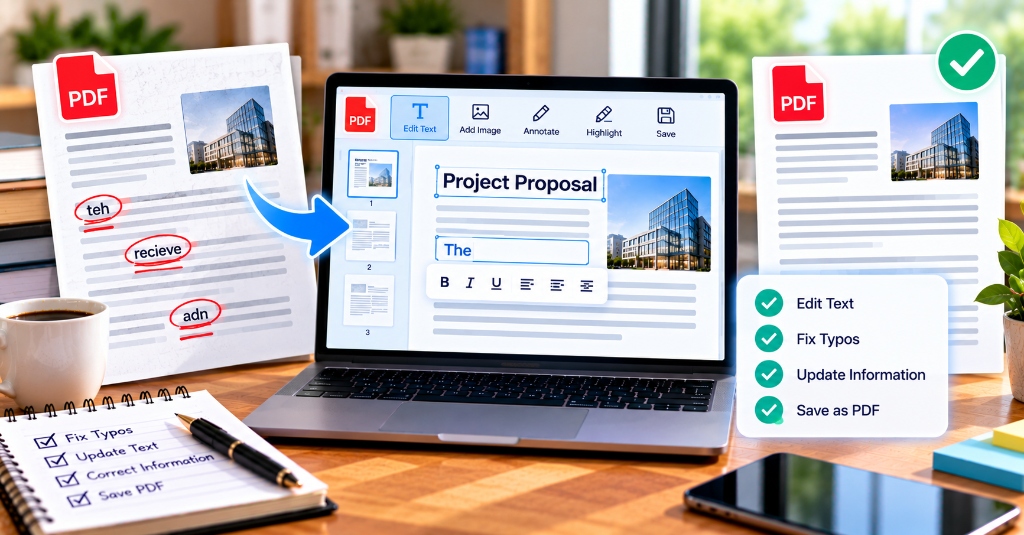
It's a sinking feeling. You've already sent the PDF, or you're about to print it, and you notice a typo. A misspelled client name, a wrong date, a missing digit in a phone number. Normally you'd open the original file and fix it, but the original is gone, sitting on a colleague's laptop, or was created by a designer you no longer work with. Here's the good news: you don't need the source file at all. Retype – Free PDF Editor with OCR lets you fix typos directly inside the PDF, free and without signing up.
Why Small PDF Mistakes Matter
A single typo can undermine an otherwise polished document. On a business proposal, it looks careless. On a certificate or invitation, it can be embarrassing. On an invoice or contract, a wrong number can cause real confusion or delays. Fixing these mistakes quickly protects your credibility, and it should never require hours of work or new software.
The Old Way vs. the Easy Way
Traditionally, fixing a PDF meant one of three frustrating options: tracking down the original file, paying for premium PDF software, or recreating the entire document from scratch. Each one costs time, money or both.
With Retype, the process is simple. You upload the PDF, click the incorrect text, type the correction, and download the fixed file. Because Retype includes OCR, it works even when your PDF was scanned or exported as an image, which is often the case with older or shared documents.
Step-by-Step: Fixing a Typo in Your PDF
- Open Retype – Free PDF Editor with OCR in your browser.
- Upload the PDF that contains the mistake.
- Find the typo on the page. If the document is scanned, OCR will detect the text first.
- Click on the word or number and type the correct version.
- Scan the rest of the page for any other errors while you're there.
- Download your corrected PDF.
No account, no email confirmation, and no payment screen at the end.
Typical Mistakes People Fix with Retype
- Misspelled names on certificates, awards and letters
- Incorrect dates on event flyers, notices and schedules
- Wrong phone numbers, emails or addresses on brochures
- Pricing errors on menus, catalogs and quotes
- Small grammar slips in reports and handouts
A Quick Proofreading Checklist
Once one mistake slips through, others often follow. Before you download your corrected PDF, take thirty seconds to check the details that matter most: names, numbers, dates, email addresses and website links. Reading the text aloud or reading it backward word by word can help you spot errors your eyes would normally skip.
When the Fix Is Bigger Than a Typo
Sometimes a "small fix" turns into rewriting several paragraphs. When that happens, it's often easier to work in a word processor. Use our Free PDF to Word Converter to get an editable Word file, make your larger changes, then export it back to PDF. If your mistake is in a table of figures that came from a spreadsheet, correct the numbers in Excel and recreate the PDF with the Excel & CSV to PDF Converter. You can then use Retype for any final touches.
Frequently Asked Questions
Can I edit a PDF if I don't have the Word file?
Yes. Retype edits the PDF directly, so you don't need the original source file.
Will the edit look natural?
Retype edits the text on the page itself. For the cleanest result, keep your correction similar in length to the original text.
Do I need to sign up?
No. Retype is free to use without creating an account.
Fix It Now, Not Later
Don't let one small typo hold up your work. Open Retype – Free PDF Editor with OCR, correct your mistake in seconds, and get back to what matters.
SpeckPro Editorial Team
Online ToolsNotes from the SpeckPro team on building, improving, and scaling digital products.